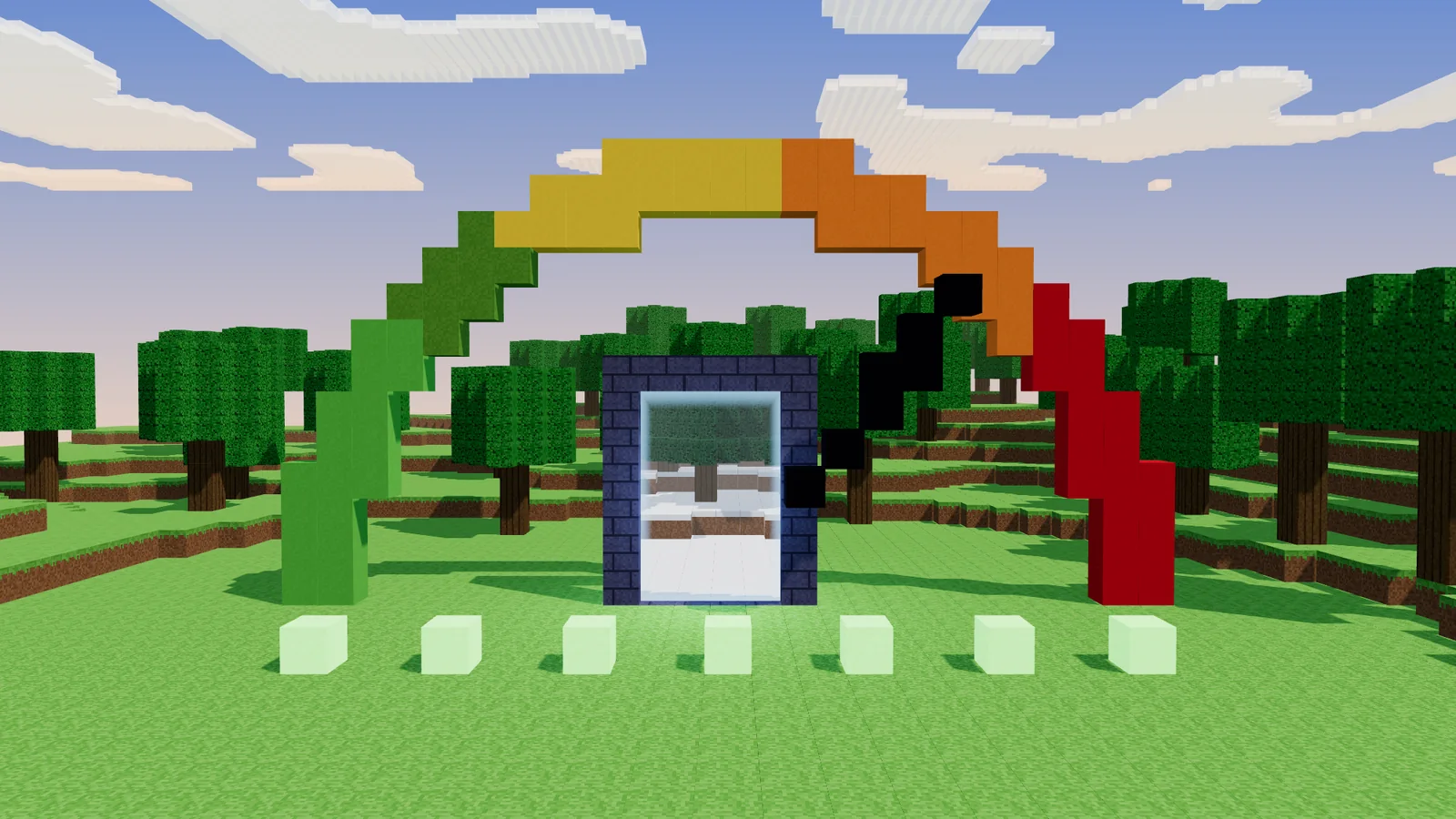
A visible portal adds another scene for the renderer to draw. Low frame rate, brief chunk-loading pauses and slow server simulation have different causes, so measure the symptom before choosing a setting.
Measure a repeatable baseline
Use the same world, position, camera angle and graphics settings for each comparison. Check performance facing away from a portal, facing one portal and viewing several portals together. Allow newly loaded terrain to settle before comparing results. Record both typical frame rate and noticeable pauses.
Limit nested portal views
Where available in your version, Max Portal Layer controls how deeply portals render inside other portals, while Portal Render Limit caps the number drawn in a frame. Reduce these settings gradually in complex builds, then check whether the resulting view still supports the intended map or puzzle.
Balance render distance and destination loading
Reduce render distance if distant terrain dominates the scene. Portal destinations can also increase chunk-loading work, so compare an established destination with newly generated terrain. Keep these loading pauses separate from continuous low frame rate when deciding whether to adjust rendering or investigate world activity.
Test shaders and optimization mods separately
Establish a stable result without shaders, then compare the same scene after each graphics change. Use only combinations supported by the installed releases. Lowering expensive shader effects may help, but an incompatible renderer should be resolved through version matching rather than increasingly low quality settings.
Keep a record of useful changes
Change one setting per comparison and write down its original value. Test a normal area as well as the most demanding portal scene before keeping the change. Restore settings that offer no measurable benefit, and avoid fixed FPS promises because hardware, world complexity and mod combinations differ.
Separate frame rate, loading pauses and simulation delay
Performance problems do not all describe the same bottleneck. A continuously low frame rate while looking at a portal differs from a brief pause when destination terrain first becomes available. Slow world interactions can also indicate simulation work rather than a drawing problem. Record when the symptom appears and whether it improves after waiting in the same place. Compare the camera facing toward and away from the portal. These observations help choose a useful experiment. Changing every setting at once can hide the difference between a temporary loading event and a persistent workload that needs a different approach.
Design a fair before-and-after comparison
Choose one demanding but repeatable portal scene and one ordinary area without a portal in view. Keep resolution, render distance, shader state and player position constant between measurements. Wait for the immediate loading activity to settle before recording the result, then repeat the comparison rather than trusting one unusually smooth moment. Note the setting changed and the visible effect on the scene. If possible, repeat the check after restarting the game. This reduces the chance that a temporary background task or a different amount of loaded terrain is mistaken for a reliable improvement.
Reduce scene complexity before sacrificing every visual setting
A portal hub with many destinations in the same view can be harder to draw than a corridor with one visible connection. Consider whether the map layout can limit simultaneous views without changing its purpose. Separate some entrances, use walls to control sightlines or reduce unnecessary chains of visible portals. Test those layout changes with the same graphics configuration before reducing quality globally. For a map intended for several players, check likely approaches rather than a single showcase angle. A scene that remains understandable with fewer overlapping views may offer a better experience than one relying on very low settings.
Adjust portal-specific options deliberately
Where your installed release provides portal-layer and per-frame limits, record their current values before making changes. Lower one control, inspect the result and decide whether the lost visual detail is acceptable for the build. A puzzle based on seeing through several connections may depend on a view that a simple travel hub does not need. Use the documentation associated with the release to understand each available option instead of copying an unexplained configuration file. Keep separate notes for client rendering changes and server-side changes so later comparisons address the system that actually controls the symptom.
Evaluate resolution and shaders as independent variables
After establishing the base result, compare the same scene with shaders disabled and enabled. If the difference is substantial, test individual shader quality settings or a less demanding preset while keeping other variables constant. Resolution changes should be evaluated separately because they can alter clarity across the entire interface and world. Avoid assuming that allocating more memory will solve a consistently expensive drawing workload. Memory pressure, graphical complexity and CPU work require different evidence. Keep a record of the visual compromises that actually improve the repeatable scene rather than collecting settings that have no measurable benefit.
Check destination activity in shared worlds
For multiplayer, ask whether slow interactions affect all participants or only one client. Compare a quiet destination with a portal near a busy area containing active entities or machinery. Client graphics changes may improve the local view without addressing server simulation delay. Preserve server configuration before testing world-loading or simulation-related adjustments, and check whether those changes affect intended gameplay elsewhere. Use a copied server environment for disruptive experiments. Describing whether the symptom is local, shared, continuous or triggered by travel helps avoid treating every performance complaint as a single portal-rendering issue.
Build a practical performance profile
Once a useful balance is found, record the game and mod versions, graphics additions, resolution, relevant settings and the world used for comparison. Keep both an ordinary scene and the demanding portal scene in your test routine after updates. This shows whether an improvement is broad or limited to one arrangement. Do not promise the same frame rate on different hardware or a more complex map. A practical profile explains the conditions under which the result was observed, what visual compromises were accepted and which changes should be checked again when the software or world layout changes.
Conclusion
Improving Immersive Portals performance is a measurement process. Identify whether the problem is persistent rendering cost, loading pauses or world simulation, then compare one controlled change at a time. Portal layout, nesting, view distance and shaders all deserve separate tests. Keep the changes that produce a repeatable benefit without breaking the experience your build requires. A documented performance profile is more useful than a universal preset, because it preserves the relationship between your hardware, software versions, world complexity and preferred visual quality.
Tune for your actual world. A setting is useful when it improves a repeatable scene while preserving the portal behavior your build needs.